
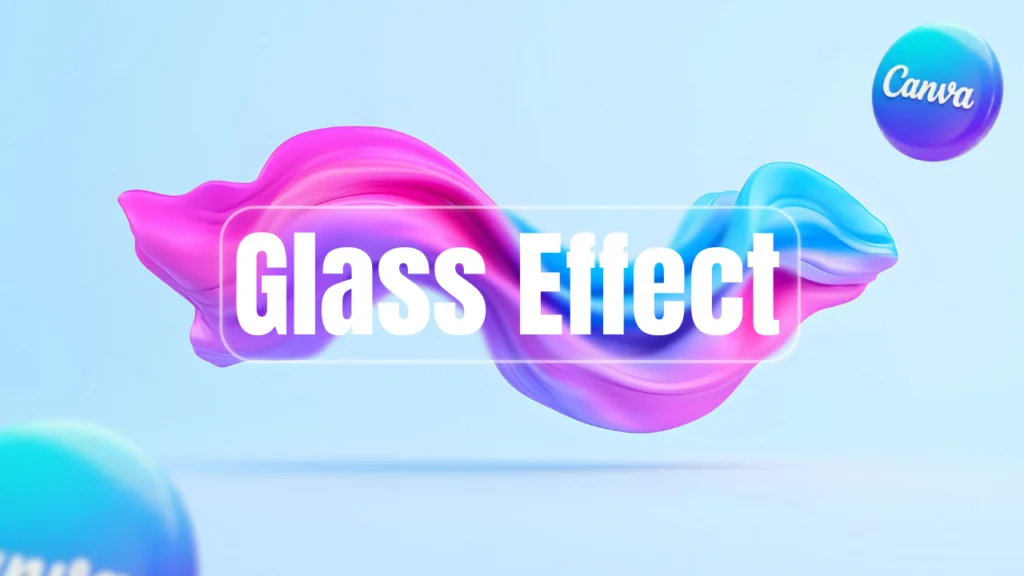
Creating a glass effect in Canva is super easy; it just takes a few minutes to do. Canva has a hidden feature to make that type of effect. I share with you a step-by-step guide and also give you some pro tips. If you didn’t understand any topic, you can watch the full YouTube tutorials below. Now let’s dive in and learn to create that effect for free.
Step 1
- Open your design and add your background image because this glass effect blends with the background.
- Increase the size to full screen.
- Now go to Canva’s apps section and search “Glass maker” and open the app.
- Note: To recognize the app, see the image below.
- Here you have two options: 1. Use the selected image. 2. Export the design.
- If your design has multiple layers and you want to add a glass effect on top, you need to export the design first.
- After that, import the image, and then you can select it again.
- If you have one layer to add the glass effect, then you don’t need to do that step.
- Now select the background image and click the “Start Glass Effect” button.
- Here, your first step is complete.

Step 2
Now we create the glass effect.
- Now you can see some options and preview glass effect in your design.
- In Option, you have: Position, Scale, Radius and opacity, glass, stroke, and shadow.
- In your design, you see a box; that is the preview of the Glass Effect, so adjust according to your needs.
- You can adjust with the Arrow, Position, and Scale options.
- After that, you can customize the glass effect with those options. Adjust according to your needs.
- I also give you the best setting for the glass effect.
| Radius | 25 |
| Opdacity | 0.3 |
| Glass | 0.1 |
| Stroke | 2 |
| Shadow | 16 |
- Apply this setting. If you are not happy with the setting, you can customize it according to your needs.
- After all things are complete, click the “Add Design” button so the image is added to your design.
- Now you can delete the previous image and increase the glass effect’s image.

Pro Tips
- If you want to add multiple glass effects to your design, you can do this step instead.
- Again, open the application and use your previously edited glass design to add another glass to your design.
- Give more time to adjust all settings to give the glass effect more depth.
Suggested Blog Post
- How to Blend an Image with a Background in Canva.
- How to Place Text Behind Objects in Canva: Easy Tutorial.
- How to place an image inside the text in Canva.
- How to Create a Paint Splash Effect in Canva.
Conclusion
Creating a glass effect in Canva is super easy; it just takes a few minutes to do. Canva offers a simple way to create many types of complex designs easily. What are your thoughts about this effect? Let me know in the comments. Also, if you didn’t understand any topic, you can watch my YouTube video below.
Have a nice day.
Topic: Canva: Glass Effect.

Hi, I’m Ashish Zapadiya! I’m the founder of filcen.com, a passionate content creator diving deep into Editing and Tech. With my awesome team, I’m on a mission to build a leading company, always focused on delivering top-notch content.

