
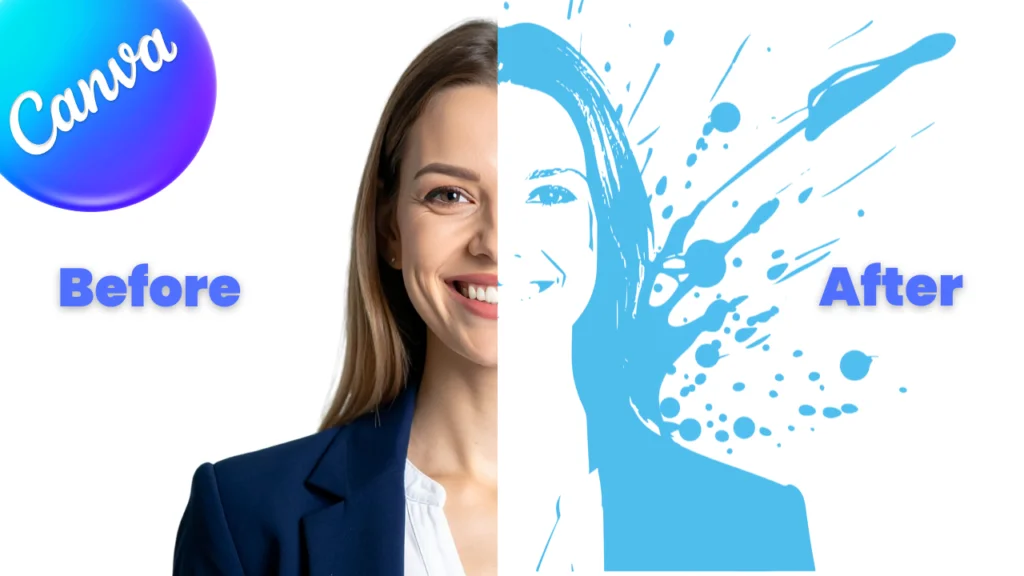
Creating a paint splash effect in Canva is super easy to do, and it takes just a few minutes. Canva has some hidden features to make that type of effect possible. I show you the detailed step-by-step guide for better understanding. And also, if you didn’t understand any concepts, don’t worry; I also share a full YouTube tutorial below. Let’s dive in and learn this effect.
Step 1
First we add the subject image to our design.
- Add the subject image to our design.
- Now, remove the subject’s background using the “BG Remove” button.
- If you use the Canva free version, you can remove the background from other third-party websites.
- Suggested Background Removal Website: Remove.Bg.
- Note: Make sure your design background is white and only your subject’s image is placed.
- After your background is removed, download the image.
- Now go to the Apps and search ‘Tracer’ and open the app.
- Now choose the file that you recently downloaded.
- Now choose the output. There are two modes: 1. Black & White and 2. Full Color (beta).
- Select the black and white and press the ‘Trace Image’ button.
- Now Tracer analyzes the image and creates your subject’s black and white shaded image.
- If your subjects do not appear perfectly, adjust the ‘Threshold’ option and make sure your subjects are perfectly visible.
- After your subject is visible perfectly, add the image to your design.
- Here your first step is complete.

Step 2
Now your image is converted to a black and white traced image, so now remove the original image that you added the first time, and expand the traced image.
- Increase the traced image to full screen.
- Now go to “Tools > Draw” and select the marker.
- Now hear is the hard part. Draw a white line and fill the middle area with white color.
- Only draw the white line under the subject, and you can see your subject’s eyes and face are removed, but that is temporary.
- After your draw is complete, cancel the draw option.
- Go to the position and drag up the traced image.
- Now the traced image is again normal, and here your second step is complete.

Step 3
- Now go to the Element option and select the ‘Graphics’ and search in the graphics for ‘Splash Ink’ and select any black-colored ink and add it to your design.
- Make sure your ink color and traced image color are black or the same.
- Now adjust the ink graphic, and after that, go to the position and place this ink effect graphic all the way to the bottom.
- Now you have a traced image with the black ink on the back.
- Now download this image as well and upload it to Canva again.
- Here your third step is complete.

Step 4
- Now add this recently downloaded image to your design and increase it to the full screen.
- Now select the image and go to the ‘Edit’ option and select the ‘Duotone’ effect.
- Here you can find a bunch of options to colorize your black and white image.
- Select any one option, and you have access to change those two colors.
- Now simply select the color that you like, and after that, your desired image is complete.
- Here your final step is complete.

Suggested Blog Post
- How To Blend An Image With a Background In Canva
- How to place image inside the text in Canva
- How To Create Half Face Text Effect in Canva
Conclusion
Creating a paint splash effect in Canva is very easy, and it takes just a few minutes. Canva has some hidden features that make this type of effect possible. What are your thoughts about this topic? Let me know in the comments. If you would like a detailed step-by-step guide on this topic for better understanding, I have also created a YouTube video below.
Have a nice day.
Topic: Canva, Paint Splash Effect.

Hi, I’m Ashish Zapadiya! I’m the founder of filcen.com, a passionate content creator diving deep into Editing and Tech. With my awesome team, I’m on a mission to build a leading company, always focused on delivering top-notch content.

