
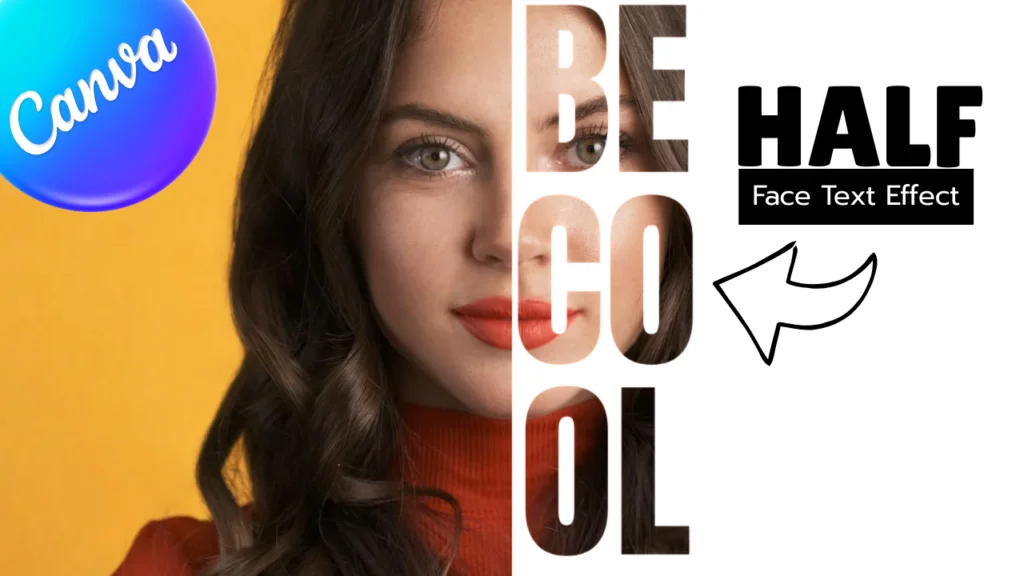
Creating a half-face text effect is really easy to do in Canva. It just takes a few minutes to do, and it looks really cool and creative. Canva has some amazing hidden features to make that type of effect possible, and also, if you have a free version of Canva, you can create that type of image as well. Let’s dive into a step-by-step guide and learn how to create that effect in Canva.
Step 1
- Go to your design page and add your subject image.
- Now go to [ Elements > Shapes ] and add a square.
- Now fill this square with half of the subject image. (Note: See the image below for a better understanding.)
- Now add a heading text and write your text.
- Customize your text and place all the text of the subject so that the second half of the subject image is covered with all the text.
- Make sure your square and all text colors are black.
- Here, your step one is complete.

Step 2
- Now duplicate the square and place it on the other half of the area, and make sure to change this square’s color to white.
- Now go to [ Position > Layers ] and drag this second square below all that text.
- Now you have an image where half of that image is covered with a black background, and the other half is a white background, and all text is on the white background area, and your main subject image is hidden.
- If your image looks like that, then download that image.
- Here, your second step is complete.

Step 3
- Remove all the text and the white and black background of this design.
- Now upload your downloaded image and add it to your design.
- Now go to the Apps and search “Blend Image” and open that app (for recognition, I added that screenshot below).
- Now you can see some settings like bottom layers and top layers.
- First, select your main subject image, and in the bottom layer, add this image by pressing the “Use selected image” button.
- After that, select the previously created Half Text Image, and in the top layer, add this image by pressing the “Use selected image” button.
- Change the blending mode to “Screen.”
- Now, in the preview window, you can see that your effects are done.
- You can also customize your design by using the “Adjust top layers” option.
- After all your customizations are complete, Press the “Add to design” button to add this image to your design.
- Maximize that image to full screen and delete both previous images to finalize that image.
- Now your half-face text effect is done.

Suggested Blog Post
- How to Blend an Image with a Background in Canva
- How to Place Text Behind Objects in Canva: Easy Tutorial
- How to place an image inside the text in Canva
Conclusion
Creating a half-face text effect is really easy to do in Canva. It just takes a few minutes to do, and it looks really cool and creative. In this blog post, I give you a detailed step-by-step guide so you can create that effect very easily. What are your thoughts about this effect in Canva? Let me know in the comments. If you want a YouTube tutorial about that effect, you can watch my YouTube video below as well.
Have a nice day.
Topic: Canva, Half Face Text Effect

Hi, I’m Ashish Zapadiya! I’m the founder of filcen.com, a passionate content creator diving deep into Editing and Tech. With my awesome team, I’m on a mission to build a leading company, always focused on delivering top-notch content.

