
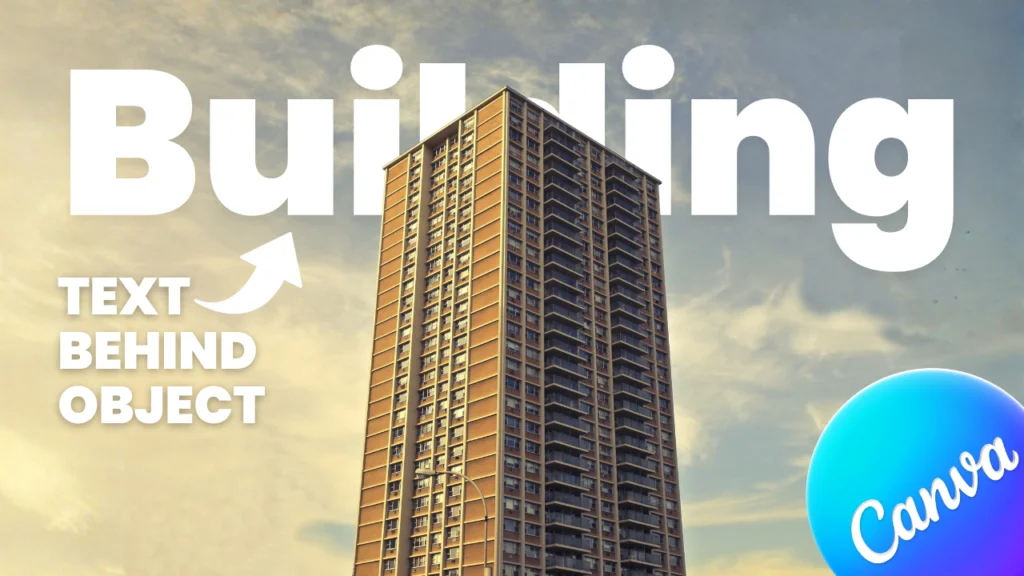
Placing a text behind an object in Canva is super easy to do. Canva is a very easy platform for designers and creators at the beginner level. That’s because a Canva workflow is easy and makes it easier for people to do their job quickly. Let’s dive into it and know how to do that in Canva.
Step 1
- Open your design and place your main image.
- Now duplicate the image and place it correctly, the same as the first image.
- Now you have two images.
- Click the upper image and remove the background by clicking the ‘BG Remove’ option in the top bar.
- If you use the Canva free version, then you can do it as well. You can remove the background with other third-party websites or apps.
- After you remove the upper image’s background, you have the main subject’s PNG.

Step 2
- Now, click the text option on the sidebar and add ‘Header.’
- Now write your text and design according to your needs.
- After a text design is complete, increase the size and place that object’s area where you want to create that effect.
- Now go to the Position > Layers.
- Now drag up the PNG image and make sure the text is in the middle of both images.
- Now your text behind an object effect is done. You can still customize according to your needs and make this effect more unique and eye-catching.

Suggested Blog Post
If you want to know how to blend an image with a background in Canva, I also wrote about how to do that in a step-by-step guide. Click here to read: How to Blend an Image with a Background in Canva.
Conclusion
Placing a text behind an object in Canva is very easy to do, and it’s not just this effect! Canva has many features to make many types of creative effects for the outcome of your creativity. What are your thoughts about that effect? Let me know in the comments. If you want to watch a YouTube video for better understanding, you can watch this video as well.
Have a nice day.
Topic: Canva, Text Behind An Object.

Hi, I’m Ashish Zapadiya! I’m the founder of filcen.com, a passionate content creator diving deep into Editing and Tech. With my awesome team, I’m on a mission to build a leading company, always focused on delivering top-notch content.

