
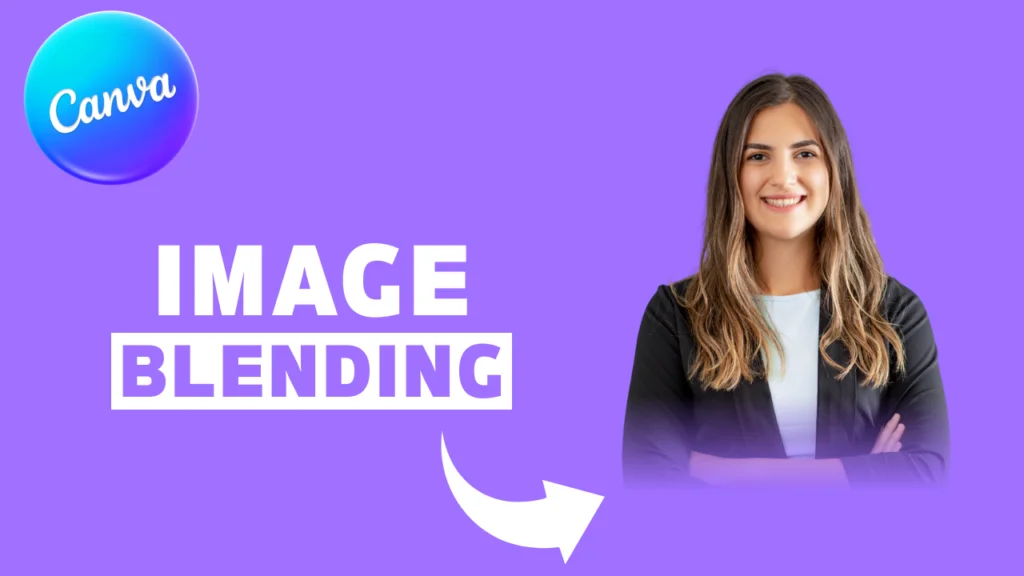
Canva is the Best and easiest software for creating attractive thumbnails, posters, Ad campaigns, and many more. To blend an Image with a Background is very easy to do. It’s just a few minutes, and you’ll get the perfect result. Let’s dive into a step-by-step guide.
Step 1
- Open your design in Canva and select your subject with one you want to blend with the background.
- In the Side Menu, find the “Apps” option and open it.
- Search in the Apps Search Box for “Image Blender” and go to the first option (to recognize the app, see the image below).

Step 2
- Open the Image Bender app, and remember that if you didn’t select your subject, select it first.
- Now, in the Image Blender, you can see that a bunch of options are locked; only two options are free, and we only want those two options to create that type of effect.
- In the free version, we got the linear and radial blend effect.
- Select whatever you like to blend (in my case, I chose Linear).
- After you select any one option in your subject area, you have two points connected by a line.
- Of these two points, the first is connected with the area of image blending, and the second is connected with the background color blend.
- Now adjust those two points according to your needs. You can also change its position and angle.
- You can even change its strength with the value line in the dashboard.
- After you are happy with that preview of blending! Click the save button, and your blending is complete.

Benefits
- The main benefit of this app is that if you change the background color, the image blending is automatically changed with that same color, so you don’t need to change the blend again and again.
- It doesn’t just blend with the background; it also blends with images, so you don’t have to worry about that.
Conclusion
Creating a blending effect in Canva is very easy to do, and it takes a few minutes to make. That makes Canva more beginner-friendly and easy to design. What are your thoughts about that effect in Canva? Let me know in the comments. If you want to watch a YouTube tutorial video for more clarity, you can watch this video as well.
Have a nice day.
Topic: Canva, Image Blending.

Hi, I’m Ashish Zapadiya! I’m the founder of filcen.com, a passionate content creator diving deep into Editing and Tech. With my awesome team, I’m on a mission to build a leading company, always focused on delivering top-notch content.

